
How to Proof Your Images
Before you place an order for your game, you will need to review and approve each of your component images. During this process, you'll see the image you've uploaded against the template for the product.
When you are proofing, you are verifying that all of the important parts of the image and text are well within the blue dotted "Safe Zone" line, and that the background color is bled all the way to the edges of the image (at least 1/8" beyond the red cut line).
When there are images in a component set that need to be proofed, you'll see an orange rectangle symbol with a black triangle in it. If you hover your cursor over this symbol, you'll see a message about which components need to be proofed.
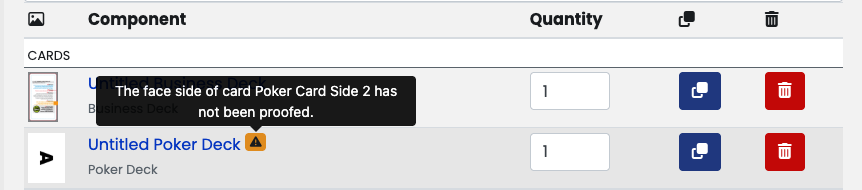
Click on the name of the component set to start. Then, you can click on the "Proof All" button for each component type (or "Proof" if there's only one component of that type).

If the image follows our template, you can click on the green Approve button. Then you will be taken to the next image that needs approval.
