Connecting The Game Crafter Warehouse to Shopify
Now that you have your warehouse account created, let's get it connected to your Shopify.
1) Click on External Shops:
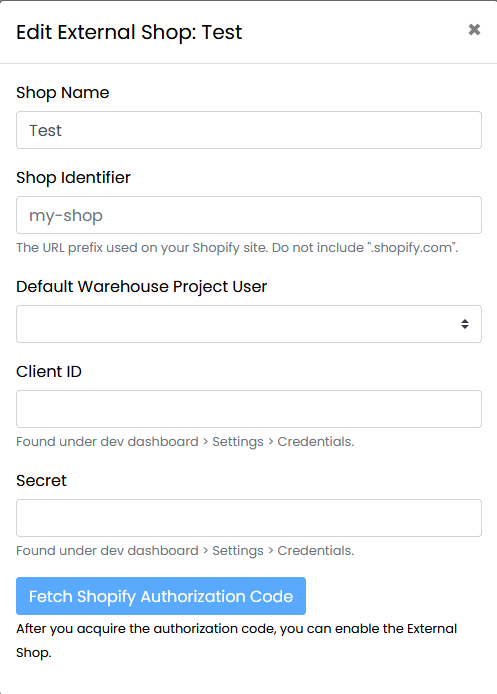
 2) Next, name your shop and click "+ Create External Shop":
 3) The shop should be listed as Disabled, with a green icon. Let's edit this shop:
 We will need to gather these key details from Shopify to connect:
4) Head over to Shopify and click settings:
 Then Apps:
 Click "Develop App" and "Build apps in Dev Dashboard":

 5) In the Dev Dashboard, you will need to Create App:
 Name the app anything but The Game Crafter Warehouse. For this example, I am naming it TGC Integration, click Create:
 6) Scroll down to Access, copy and paste this text into the scopes box, "read_orders,read_fulfillments,write_fulfillments,write_merchant_managed_fulfillment_orders,write_assigned_fulfillment_orders":
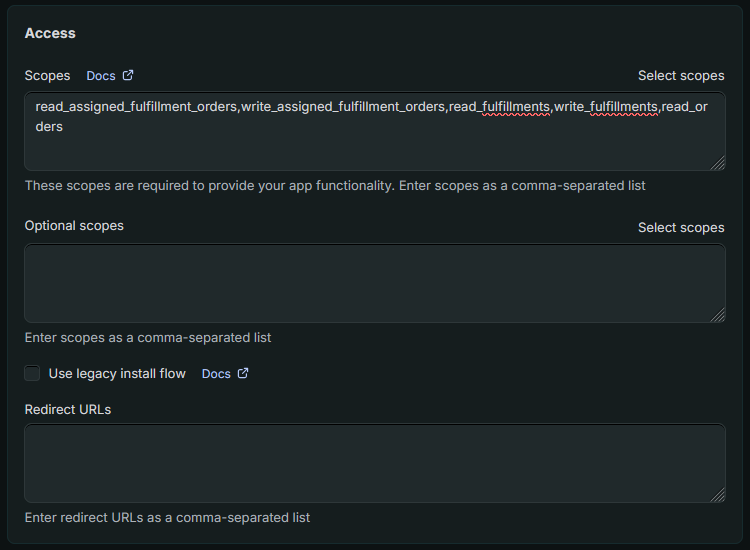
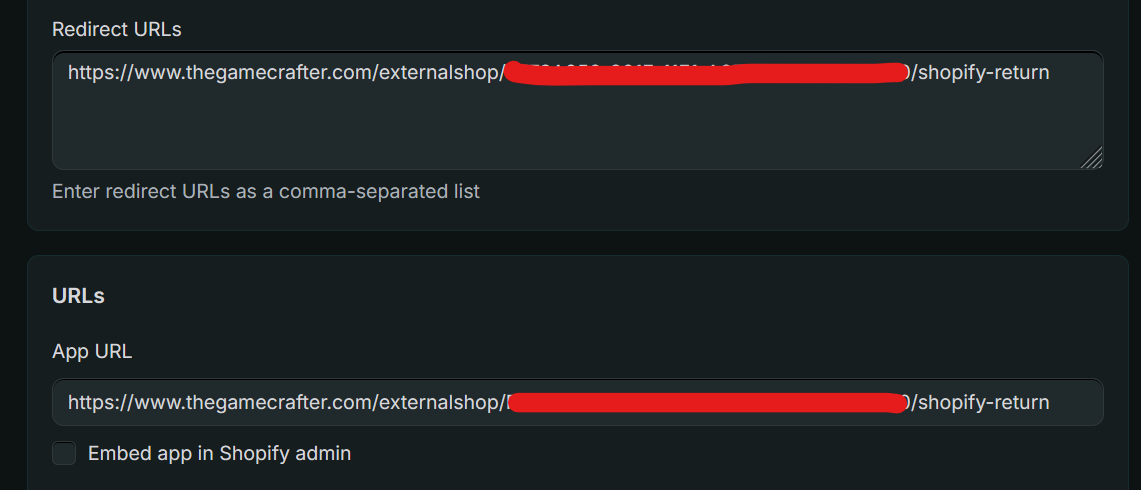
7) In the next box, under Redirect URLs, and App URL, copy and paste the letters and numbers in the URL from your Warehouse External Shop page from The Game Crafter, and paste it into the following URL templates:
https://www.thegamecrafter.com/externalshop/PasteTheLettersAndNumbersHere/shopify-return
You are copying the area in red in the following image.
 Once you have the new URL, paste it into the following boxes:
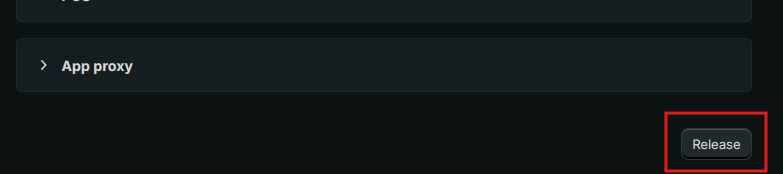
8) Scroll down to the very bottom and click "Release":
9) Click Settings on the left hand side, this will take you to the Client ID and Secret Key you need:
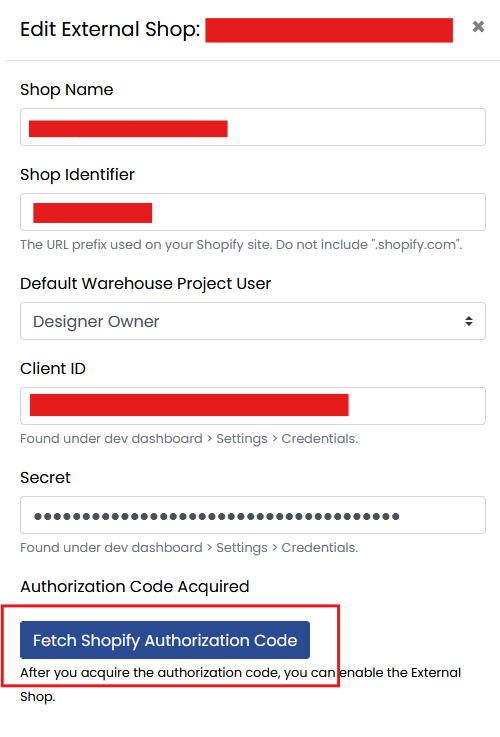
 Copy (the clip board icons) and paste them into The Game Crafter external shop window. While you are at it, make sure to enter your shop identifier (this is the first part of your shop URL) and select the designer you want to use for this shop. Then you'll click Fetch Shopify Authorization Code:
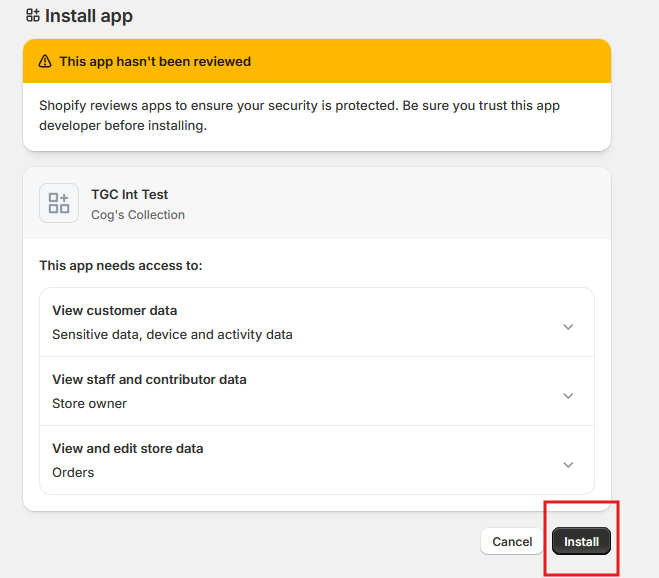
10) A webpage will open, once loaded you'll be prompted to install the Shopify App you just created. Click Install:
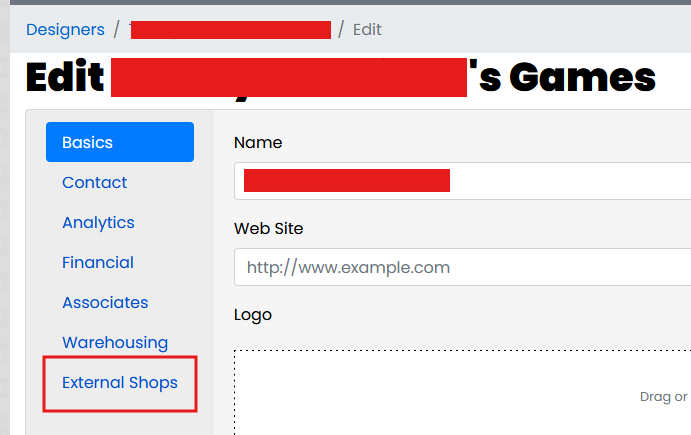
This will take you to your designer page, click External Shops:
11) Look for the Disabled green plug icon and click it:
 If you did everything right, it will turn Red and say Enabled:
IF YOU EVER DISABLE YOUR CONNECTION, YOU WILL NEED TO RECONNECT ALL OF YOUR PRODUCTS (steps 12+).
12) You have now connected. Lastly, let's look at how to select the warehouse as your inventory source. You'll need to have an inventory created in the warehouse, and you will need to have SKU's and/or Barcodes to use as well. Navigate to your products, and lets make a new product (you can update existing products too). Under Inventory, click SKU/Barcode and enter either or both and click the pencil icon to edit the quantity:
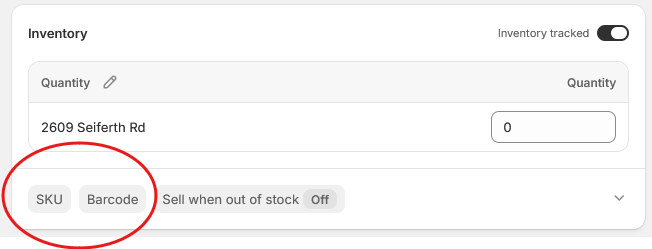
 Disable any other addresses you do not want to sell inventory from, and select The Game Crafter Warehouse (this is why you could not use this name), then save:
 Finish creating, or saving your product and repeat this for any other items you have for sale from The Game Crafter Warehouse.
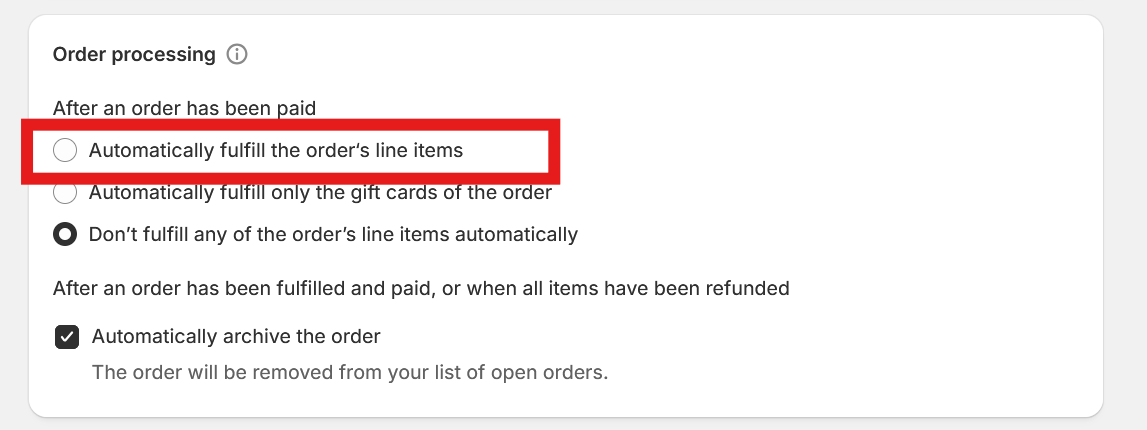
13) For automatic fulfillment, go to your account settings, search for "Fulfill" and click on Order Processing:
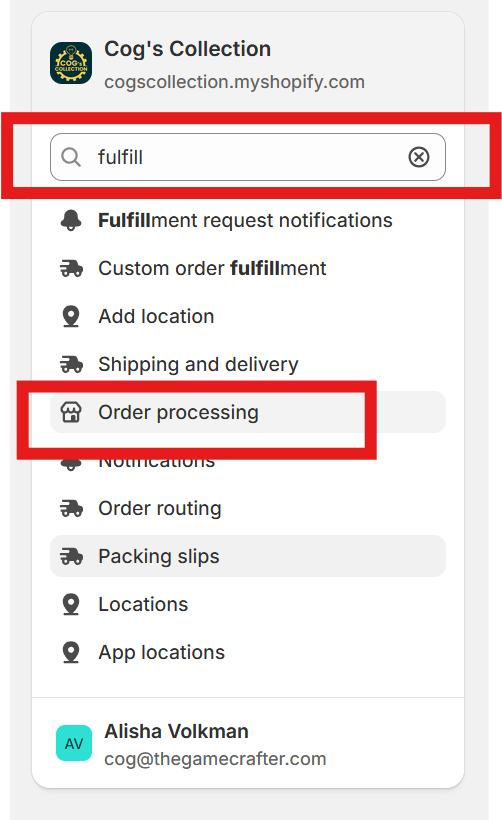
Then select "Automatically fulfill the order‘s line items". Order details will be automatically sent to TGC warehouse and when fulfilled, the details and tracking will be sent back to Shopify.